
Cook Step by Step
Cook mode turns any recipe into a guided walkthrough. Each step shows one thing to do, timers start automatically when a step involves waiting, and you mark each step complete before moving on. No scrolling, no losing your place.
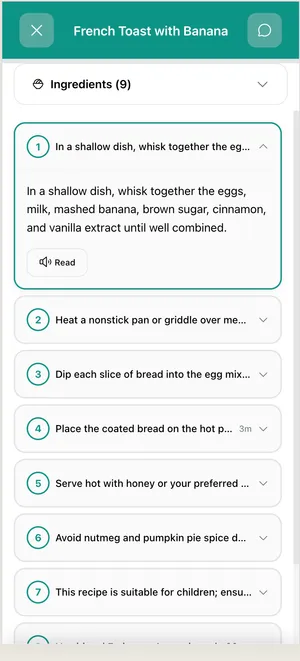
Start cooking
Section titled “Start cooking”-
Open a recipe
Find a recipe from your cookbook, meal plan, or chat suggestions. Tap the recipe to open the full view.
-
Tap “Cook Mode”
The button is at the top of every recipe. Your screen switches to a simplified, large-text layout designed for the kitchen — one step at a time.
-
Follow the first step
Each step shows exactly what to do: prep instructions, temperatures, and ingredient amounts. Everything you need is on one screen, no scrolling required.
-
Let timers run automatically
When a step involves waiting — “simmer for 15 minutes” or “bake at 375°F for 25 minutes” — a timer starts as soon as you reach that step. You’ll get a notification when time’s up, even if your screen is off.
-
Mark steps complete
Tap Done or swipe to move to the next step. Completed steps stay accessible if you need to look back, but the current step is always front and center.
-
Finish the recipe
After the last step, cook mode asks how it turned out. Your rating helps the AI learn what you like — so next time, suggestions are even better.
What you learned
Section titled “What you learned”- Cook mode shows one step at a time with large, readable text
- Timers start automatically and notify you when done
- You mark each step complete to move forward
- Rating the recipe at the end improves future suggestions
Next steps
Section titled “Next steps”- Hands-free cooking tips — Use cook mode when your hands are covered in flour
- Set up your household — Make sure recipes account for everyone’s needs