
Plan a Full Week
A full week of breakfasts, lunches, and dinners — personalized to your pantry, your dietary preferences, and your household — in about 30 seconds. Here’s how.
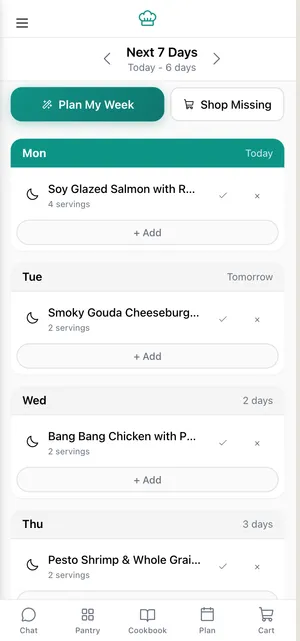
Generate your meal plan
Section titled “Generate your meal plan”-
Open the Meal Planner
From the main dashboard, tap Meal Plan. You’ll see an empty weekly calendar with slots for each meal.
-
Hit Generate
Tap Generate Week. The AI cross-references your pantry inventory, your household’s dietary preferences (vegetarian, dairy-free, nut allergy — whatever you’ve set), and seasonal availability to build 21 meals across 7 days.
This takes about 30 seconds. You’ll watch the calendar fill in real time.
-
Review your week
Scroll through each day. Every meal card shows the dish name, estimated cook time, and a quick ingredient summary. Meals that use ingredients you already have are marked with a green pantry badge — those cost you nothing at the store.
-
Check the balance
The AI avoids repetition automatically. You won’t see chicken three nights in a row or the same grain at every lunch. It also balances prep effort — heavier cooking sessions are spaced between quick meals.
-
Approve or adjust
Happy with the plan? You’re done. Want to swap Thursday’s dinner or regenerate a day you’re not feeling? See Swap and Edit Meals.
What affects your plan
Section titled “What affects your plan”- Pantry contents — Meals prioritize what you already have to minimize shopping.
- Household preferences — Allergies, diets, and dislikes are hard constraints. The AI won’t suggest peanut stir-fry if someone has a nut allergy.
- Cooking history — Over time, the AI learns which meals your household actually cooks and adjusts recommendations toward your taste.
- Variety rules — Built-in constraints prevent protein, cuisine, and effort repetition across the week.
Next steps
Section titled “Next steps”- Swap and Edit Meals — Replace individual meals or regenerate entire days.
- Your Shopping List — See everything you’re missing, organized by category.
- Order Missing Ingredients — Send your shopping list straight to Instacart with one tap.